
DOCS

Get started with Brian

Five steps to connect Brian to Claude. Sign up first — the live walkthrough waits for you in your Brian Settings. The visuals below are previews of what you'll see at each step.

Open the walkthrough in Brian Settings

Once you're signed in, the walkthrough below appears at /settings. Copy your unique connection URL, then click Open Claude integrations ↗ — Claude opens in a new tab on the Connectors page.

Setup · Walkthrough

Connect Brian to Claude

Brian connection

Not connected

1 · Copy your connection URL

https://tjirozgvkqmiosgjotug.supabase.co/functions/v1/mcp/mcp

2 · Add Brian to Claude

Click below to open Claude's integrations page in a new tab. The rest of this step happens over there:

  1. In the Claude window, scroll to Custom connectors.
  2. Click Add custom connector.
  3. Name it Brian and paste the URL you copied above.
  4. Click Save (or Add, depending on Claude version).

3 · Authorise the connection

Still in the Claude window:

  1. Find Brian in the connector list.
  2. Click Connect.
  3. Sign in with the same email you used for Brian and click Approve.
  4. Come back here and click Check at the top of the walkthrough. Once Claude has called Brian for the first time, this step will auto-tick.

4 · Install the Brian Onboarding skill

Download the onboarding skill, then upload it to Claude. This is the bootstrap — once installed, it'll guide you through setting Brian up properly and installing any other skills as you need them.

  1. Click Download below to grab brian-onboarding.zip.
  2. In Claude, go to Settings → Capabilities → Skills → Add custom skill and upload the zip.
  3. Come back here and run the After connecting prompt below — Claude will activate the skill and guide the rest.

5 · Connect Google Drive

Allow Brian to save documents and specs to your Drive so everything persists permanently.


Add the custom connector

In Claude's Add custom connector dialog, name the connector Brian and paste the URL you copied from step 1 into the remote MCP server URL field. Hit Add.
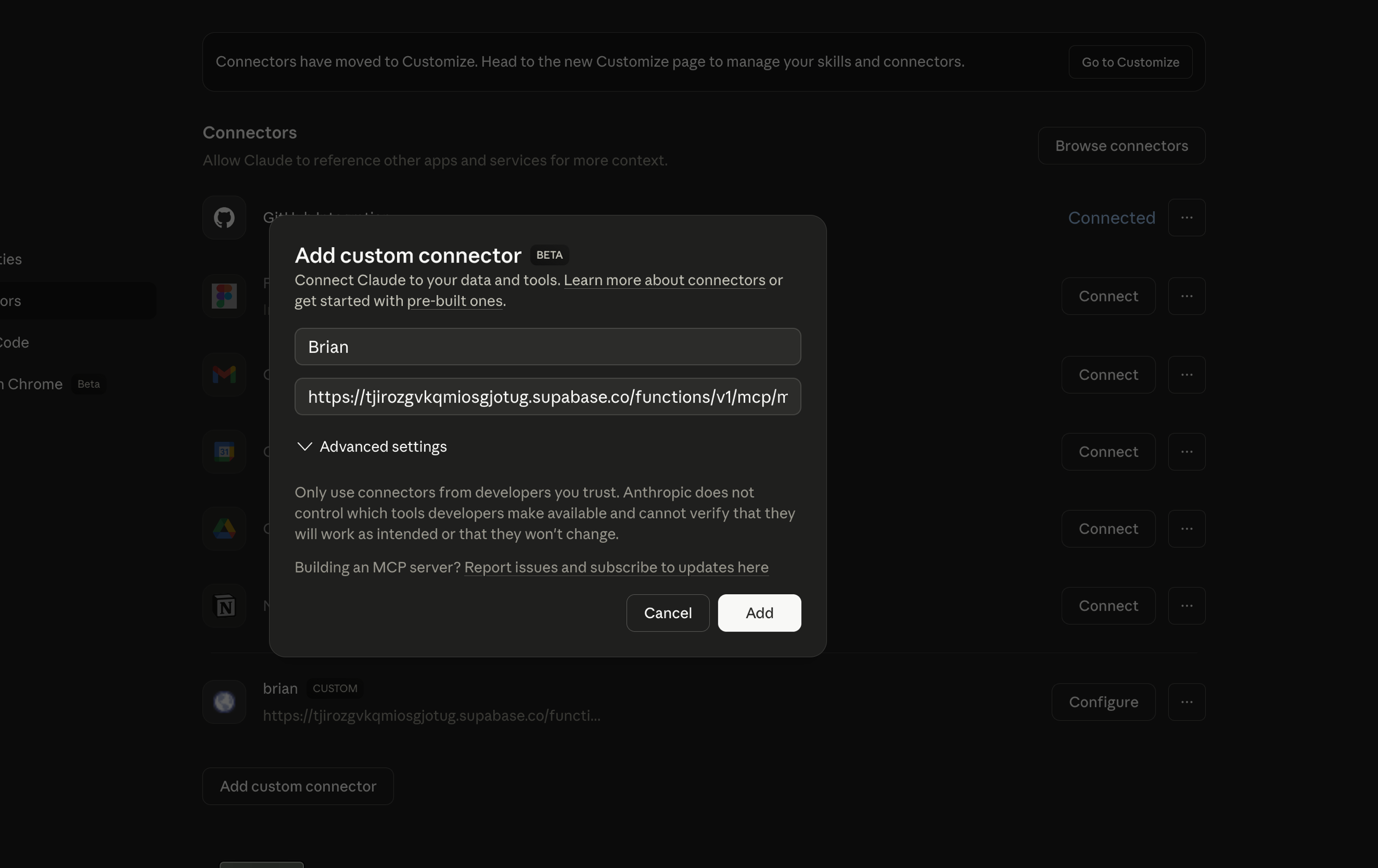
Claude Add custom connector dialog with the name set to Brian and the connection URL pasted in
Claude — Add custom connector

Sign in to Brian

Brian now appears in Claude's connector list. Click Connect— Claude redirects you to Brian's sign-in page. Sign in with the email and password you used when you created your Brian account.


Approve

After signing in, Brian shows the authorisation screen below. Click Approve.
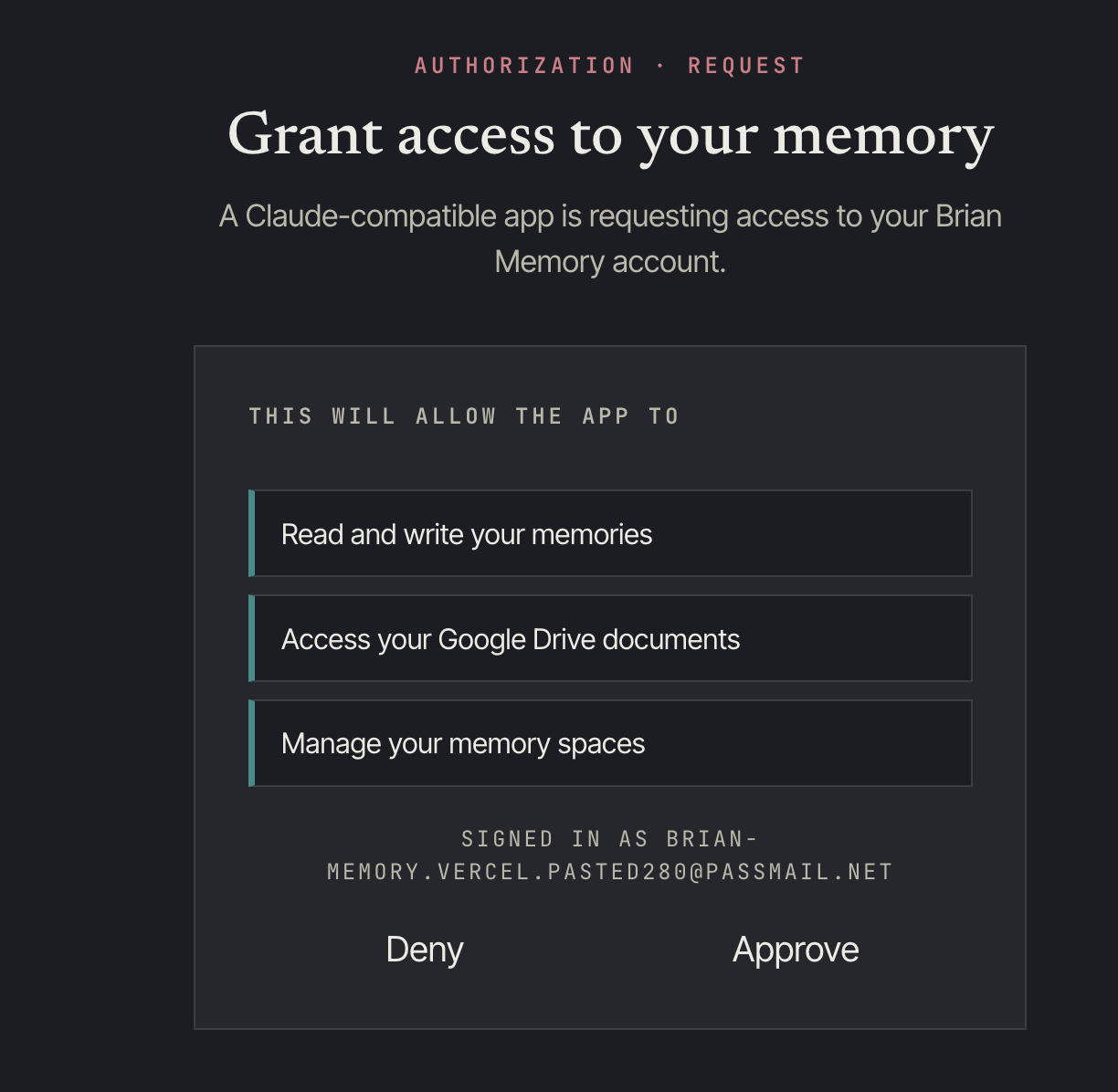
Brian authorisation screen — Grant access to your memory, with Approve and Deny buttons
Brian — Grant access

The walkthrough back in Brian Settings auto-ticks Connected to Claudeon Brian's next tool call.


Kick off onboarding

Back in Brian Settings, the After connecting block (previewed below) appears once you're connected. Hit Open in Claudeto drop into a new conversation with the prompt pre-filled, or copy the prompt and paste it manually. Brian guides the rest — your role, what you use Claude for, how you'd like things organised. About two minutes.

After connecting

Once you've approved the Brian connector in Claude, try this to get started:

I just connected Brian for the first time. Please set me up.